This chapter describes how a cash count must be done and the points you should pay special attention to so that a good link can be established with the bookkeeping. The normal procedure is that a cash count is performed every day for each employee and/or cash till. Applying this procedure makes it possible for the daily report list to be used to check the cash count against the bookkeeping.
 Cash count
To perform the cash count, you first start up the scan sales programme. Do this via the menu Sales -> WinTree Cash and Carry -> Cash and Carry or via the shortcut button  .
.
How the different buttons work is explained in a separate manual for the Cash and Carry program. This chapter contains only a description of the cash count procedure. If the button shown below is not available, this means that a user has logged in who does not have the authority to perform the cash count.

You can log in with the correct user in the following ways:
1. Close WinTree and log on with the correct user.
2. Click the following button in the Scan sales window.

After clicking on this button, the window below will be displayed in which you can log on in the same way as when you start up WinTree.



Enter the correct user name and access code and the cash till screen will appear again.
On this window you will see the button for cash count.
After clicking on this button, the window shown below will be displayed.
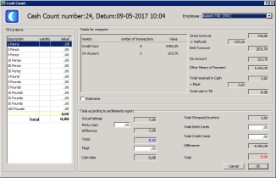
You can perform a total cash count, or a cash count per employee, depending on the settings that have been defined. If you select an employee, in the middle section, under 'Totals', you will see how many transactions have taken place according to the computer. If this is not filled in, no export file will be created with C&C invoices.
ATTENTION: Make sure that the correct employee is selected because the first action that will happen is that the screen corresponding to the employee that is logged on will appear, because no C&C invoices have to be booked under this employee.
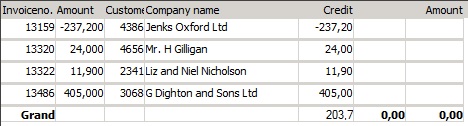
If the 'Extensive' checkbox is activated, an overview of all the invoices that have been paid via the cash till screen and for which an invoice has been printed will be produced. These invoices also appear on the daily report and must be booked manually in the cash book in the bookkeeping. If you de-activate the checkbox, you will be returned to the normal cash count window.