



Per 1 January 2003, a European guideline, number 1999/105/EG, in place for the registration of the source of sylviculture-skilled cultivation material. Administratively seen this means a few extra steps in the the process of production and delivery. This is about the following steps:
- Certification
- Registration of relevant information
- Printing supplier certificates
- Periodical sales declaration to the MAFF
Certification.
During the production (collection) of seeds, or the purchase from seeds from non-EG countries the batch has to be registered at the MAFF. The MAFF will then give a certificate with a unique number. This basic certificate number needs to be registered during the entire trading sequence.
This certification is valid for a limited (± 50) amount of genus.
Registration of relevant information.
For sylviculture-skilled cultivation material, extra information needs to be saved. This information is originating from:
- The certificate mentioned above, when it is about the own production or when the batch is purchased from a supplier from a non-EG country.
- Supplier certificate of the supplier, when the batch is purchased from a supplier from an EG country.
The information that is saved, is needed to create supplier certificates at the sales of batches.
Printing supplier certificates.
With help of the entered information it is possible to print supplier certificates at the sales or delivery of the batches sylviculture-skilled cultivation material.
Periodical sales declaration to the MAFF.
From WinTree it is possible to print an overview with which the declaration towards the MAFF concerning the issued supplier certificates, can be done.

Setting up the use of the registration of sylviculture-skilled cultivation material
If there is trade in sylviculture-skilled cultivation material and the registration needs to be entered in WinTree, then first an amount of settings have to be set to make this possible.
During the making of this manual the assumption is made that the WinTree user is up-to-date with the laws and regulations regarding the source registration of sylviculture-skilled cultivation material. Also the meaning of the various input fields are not further discussed. This information can be taken over from the basic certificate of the MAFF or the certificate that needed to be provided with the purchased batch.
 Settings
To make the registration possible in WinTree, via File -> Settings on the tab page "Registrations" the input field 'Source registration' needs to be set to the value 'Use source registration'. Use for this the dropdowwn list to select this value.
On the same tab page is also an inputfield 'Forestry on sales order lines'. If via the dropdown list this input field is set to 'For forestry', then during the creating of a sales order line automatically a tick will be placed resulting in easier creation of supplier certificates. If the value is set to 'Not for forestry', then the line is not automatically ticked and then this has to be done manually for every line that contains sylviculture-skilled cultivation material. The above is also valid for the sales lines in a delivery.
Place a tick in the checkbox 'Use seed treatment description' if on a cerficate also the information regarding the seeds needs to be mentioned.
Place a tick in the checkbox 'Print certificate' in case the certificate has to be printed at the same time the delivery is confirmed. For this it is necessary that the delivered line has tick at the sylviculture-skilled cultivation material.
TSD advises to give the input field 'Forestry on sales order lines' the value 'For forestry'. This setting in combination with the tick in the checkbox 'Print cerficate' always manages a supplier certificate in case a delivery takes place with sylviculture-skilled cultivation material.
In the input field 'Start number of new certificate' the last used number of the old administration can be entered. WinTree will use this number to continue the numbering.
For every plant name that is covered by the regulations, it is necessary to select the way of registration via the dropdown list. There is a choice between Mandatory, Voluntarily and Not applicable. Search via Stock items -> Maintain Plant names the plant name that is covered by the regulations. In the frame 'Registrations' there is a dropdown list 'Source registration'. If this checkbox is not available then the settings on the tab page "Registrations" are incorrect.
Select 'Mandatory' and when booking a sales order a supplier certificate will be made. Select 'Voluntarily' if during the making of a sales order, there has to be an option to register. Only choose 'Not applicable' if first 'Mandatory' or 'Voluntarily' had been chosen. Leave the dropdown list empty if no registration has to take place.
Tab page "Seed treatment"
In case via the dropdown list is indicated that the registration is 'Mandatory' or 'Voluntarily', then on the tab page "Seed treatment" per language (from the basic information, only applicable if the module 84, Foreign Trade is activated) a description can be entered for Germination, Scarification and Stratification.
Click on [Create] to show a list of all available languages in the window. Per language and treatment, the description can be entered in the field 'Description'.
For the plant qualities the same applies as for plant names. Per plant quality needs to be indicated if the plant quality can be used for the registration. In general the amount of used plant qualities that has to be registerd, is limited, because plants with an age of 3 or 4 are most of the time not used for forestry.
Search via Stock items -> Maintain Plant qualities the plant quality that has to be registered. Select from the dropdown list if the plant quality is going to be used for the registration for 'Forestry' or for 'Seeds'. In case the choice has been made and this has to be undone then the option 'Not applicable' needs to be selected. Leave the field empty in case no registration has to take place.
On the supplier certificate, an amount of descriptions are printed that can differ per language, for example for Category 'Tested' and 'Selected' can be used. These texts can be defined with a translation. The translations can only be entered when the module 84, Foreign Trade is activated.
Via File -> Basic information -> Texts -> Source texts the texts can be defined. By default for the various registration fields, texts are already entered.
Click on [Add] to add a new text to one of the registration fields. An empty line will be shown. Select in the first column from the dropdown list the registration field. Then in the second column the text can be entered. So differing texts can be linked to various registration fields. When entering the source information, the texts can be selected.
In case the entered texts have to be translated (this happens when printing the supplier certificates on the basis of the language of the customer), then select the text first and click on [Create]. All languages, entered in the Basic information -> Other -> Languages, are now shown with behind it the entered text. Select per language the text and enter the translation.
Daily use
After all necessary settings are made, the data can be used.
For entering the source information per stock batch, it does not matter if at the plant name or plant quality is indicated if a registration has to take place. This information is used in the booking of sales orders.
For this manual, the source registration for the plant name 'Acer campestre' is set to 'Mandatory'.
After entering a stock batch, on the tab pages "Source 1" and "Source 2" the registration information can be entered.
Click on [Add] to enter information for the certificate.
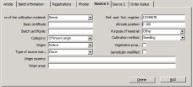


With help of the inspection report of the MAFF, most fields on the tab pages "Source 1" and "Source 2" can be enetered. The MAFF can advise about the values that have to be entered in the various fields. In case it concerns a purchase and this purchase is not booked via WinTree, then the information can be taken over from the supplier certificate of the supplier.
At the fields with a black arrow, then via a dropdown list one of the predefined texts can be selected. These are texts entered at Basic information -> Texts -> Source texts.
When for a stock batch a certificate has been entered, but no longer needed, then the certificate information can be deleted via [Delete].
After the certificate information is entered at the stock batches, then this information can be used in the booking of sales orders.
The sales lines are booked as usual.
In case an articles is sold with which the plantname has the registration attribute 'Mandatory' and the plant quality has the registration attribute 'Forrest trees' or 'Seeds', then in the column 'Forestry' a tick will be placed. This column can be seen at the end of the sales line on the tab page "Rows". Via adjusting the dispay, this column can be moved.
If for the plant name the registration attribute is set to 'Voluntarily' then no tick will be placed, but can be done manually by clicking on the checkbox. In case a sales line, despite having the registration attribute 'Mandatory', does not have to be registered then the tick can be removed by clicking on it.
The source registration information from the stock batches is linked to the sales lines when allocating the sales lines. This information cannot be changed in the sales order. If there is allocated on multiple stock batches that each have their own information, then when printing the supplier certificates also multiple certificates will be printed.
After the sales lines are placed in a delivery, the certificate information from the sales order is copied to the delivery. In case the sales lines are allocated in the delivery, then during the allocating the certificate information is taken over from the stock batch.
In case at the stock batch, on which there is allocated, the information changes then the allocation needs to be undone. Only after allocated again, the new changed information will be linked to the delivery lines.
After entering a purchase line, it is possible to already link the source information to it. For this, the information can be entered on the tab pages "Source 1" and "Source 2". The entering of information is done similar to entering information per stock batch.
After a sales line is allocated on a purchase line, for which source information has been entered, this information is linked to the sales line. If the certificate information is entered at the purchase line after a sales line has been allocated on it then this information is not automatically copied to the sales line. First the allocation has to be undone, to then reallocate it.
Also when allocating from the delivery, the information of the purchased batch is used for printing the supplier certificates.
Printing supplier certificates
In both the type of reports 'Orders' and 'Deliveries' a new document is available; Supplier certificate (sales order or delivery).
After via File -> Settings -> tab page "Lists" the documents are set correctly (printer selected, Show and/or Print ticked), the list can be printed from an opened sales order or delivery with help of Print-button.
For printing the supplier certificate from the sales order, no print settings can be entered. For printing the supplier certificate from a delivery, there can be set if recently printed lines have to be printed again and if voluntary lines have to be printed.
Via File -> Print these list can also be printed from the type of reports 'Orders' and 'Deliveries'. Only for the supplier certificate from the delivery it is possible to select on delivery number or delivery date.
To print an overview that can be used for the declaration to the MAFF, there is in the type of report 'Declarations' a document available named 'Declaration delivered origin batches'. When printing this document, there is a selection on possible on delivery date, supplier, customer, plant name and plant quality.