



The tab 'Lists' is an overview of all available documentsbinnen WinTree.
In WinTree Nursery Manager it is possible to define separate settings for each list (document). List settings can be found via File -> Settings -> Lists 'Tab'. Think, for example, of settings for different printers, for deliveries and for invoices, and the default setting for quantities that need to be printed. The default for whether to print or not and even the default for whether or not to offer the possibility of displaying a Print window before printing. These are all examples of default settings. As long as you do not make use of the last-named setting, you will still be able to make other choices in the final Print window.
This topic contains these sections:
 Lists
Lists
On this tab you can do the default settings. In the left linker column are the 'Type of report'. Here are a number of groups. The number of shown groups is highly dependent on the module composition of WinTree.
Click on one of the groups to display all available documents in this group in the right column.
The following information is available per document in the right column:
| Available reports | Here is the description of the document | ||||||
| Printer |
Here you can indicate per document which printer is the default printer. | ||||||
| Quantity | Quantity gives you the opportunity to specify a default number of copies. When the Print window appears, this amount will automatically be filled in. This is useful when multiple prints of a document are required (e.g. an invoice) | ||||||
| Doc. nr | Each document has a unique number for reference. Refer to this number if support for this document is requested by TSD. | ||||||
| Show | The Show heading also has a checkbox below it. If you do not check this 'On', you are choosing not to be given the possibility of printing this list. If you do check this 'On', the list will be visible and you can choose to print it. | ||||||
| Select | By placing a check mark in this checkbox, when printing from an open screen this document will be selected. | ||||||
|
By placing a check mark in this checkbox it is also possible to send the document by e-mail. Only documents containing contact details of a relation can be sent by e-mail. | |||||||
| Fax * | By placing a check mark in this checkbox it is also possible to send the document by fax. Only documents containing contact details of a relation can be sent by fax. | ||||||
| Translate** |
By placing a check mark in this checkbox the document will be translated based on the language of the relation. Only documents containing contact details of a relation can be translated. | ||||||
| Type report |
| ||||||
| Archive? | A cpoy of this document will be saved in the archive. For more information about this function see also: Archive |
Print Options
The description below explains how for a copy of a picking list the range of location numbers can be saved. Click on the button [Print options] in the settings window. The window 'Selection & Settings' appears.
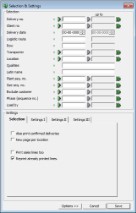


It is possible to select one specific location or a range. Click for this on the green arrow and choose the location from the list.
To select not consecutive locations, click on the double green arrow. Now it is possible to insert various locations.

It is also possible to exclude locations. Enter according to the method above which locations have to be excluded. This can be a specific location, a range or separate locations. By now clicking in the 'Selection & Settings' window on the green arrow for location, the tick will change to a red cross.

Do not forget to save the made alterations in the window 'Selections & Settings' by clicking on [Save].
 |
Print selections are always user dependent. So every user has to insert and save the print settings per document themselves! |
Settings
Button [Layout wizard]
With the layout wizard you can modify layout characteristics of your reports. If you do not have access to the WinTree module Flexible report layout, the possibilities for changing the layout of your reports are very limited. Usually, any modifications to the layout of your reports are done for you during the installation or on the training day.
If you should have any questions regarding the layout of your reports, get in touch with TSD. They can advise you on these matters and indicate the best solution to your problem
Copy Lists
In WinTree it is possible to make a copy of an existing list. This makes it possible to make business specific settings per list. For example two delivery notes can be made, one with the price and the other one without price by default without having to change the printing settings every time. Another possibility for using copies of lists is the use of multiple picking lists where per picking list a range of location are set by default so every picking team can take its own list into the nursery.
|
With help of parameter 2396 (parameter to be set by TSD) the message ‘No data for the chosen selection’ will be suppressed. |
To copy a list, open the menu File -> Settings -> Tab page Lists and select in the section 'Type of report' the correct group and choose the document that has to be copied. Then click on the button [Copy list].
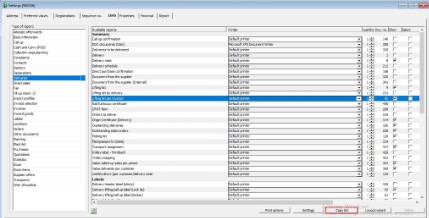
A message pops up that the copy has been made. In the list with available documents, a copy of the document is visible. The copy can be clearly recognised with the word 'Copy' behind it in brackets. The document number of the copy is higher than 9999. This higher document number is important to prevent that an update of WinTree will overwrite it. Select now the made copy and click on the button [Layout wizard].
The most important setting in the opened 'Layout Wizard' window are 'Description' and 'Uses report'.
Change the name of the document in the field 'Description', use a name that is understandable for all users of the purpose of the document. Select in the dropdown list 'Uses report' the name of the document of which the copy has been made. Select here never 'Original document' because then this document will use its own layout and settings, which can give incorrect printing. All changes are saved by clicking on the [Save] button. And then the window can be closed with the cross (upper right corner).
|
Before the printing settings can be altered and saved, the correct type of report has to be linked to the new copy first. Select on the tab page 'Lists' the copy document and double-click on the empty field in the column 'Type report'. |
Click on the empty field 'Type report' and select from the dropdown list FastReport – Client.
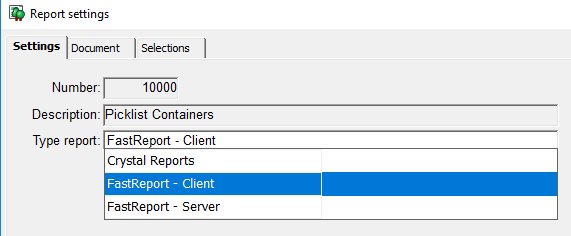
Click on <<Tab>> and close the popup window with the cross-button. Now it is possible to determine specific selections for this document.
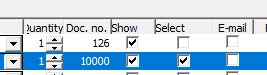
To manage that users of WinTree can use this list and, if desired, automatically select it then in the 'Settings' window the column 'Show' and 'Select' has to be ticked.
Manual inventory Crystal Reports [USER] documents
In order to outline the differences between your Crystal report [USER] documents and the standard FastReport - Client documents we need to carry out some actions beforehand.
In the below manual we will explain, step by step, how to map out the differences between the formats.
Used documents
To find out which WinTree documents are Crystal Reports [USER] documents and are currently still being used in your database you need to follow the next steps:
Open your Windows File explorer, go to WintreeData(W:\) and open the folder Reports -> User
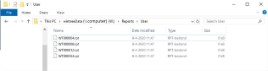
When you open this folder and there are files starting with WT0…. and end with .rpt than you are using Crystal Report [USER] documents. The numbers on the end of the file name are equal to the document numbers used in WinTree. Write down these numbers or leave the file explorer open on this folder, so you can look up the numbers when we proceed with the steps.
Document numbers
The next step will be to look up the document numbers in WinTree. Go to File Settings Tab “Lists”. On the left side you can select the Type of report, in this example we will be using the “Orders”. The document numbers will be visible on the right side of the screen. These numbers are equal to the numbers found in the previous step.
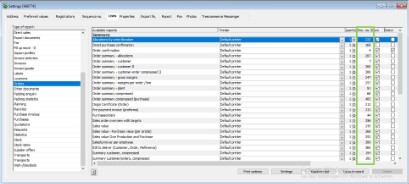
When you move the horizontal slider on the bottom of the screen to the right the column “Type report” will appear.
This column may show the following values:
- FastReport - Client
- FastReport - Server
- FastReports Client [USER]
- FastReports - Server [USER]
- Crystal Reports
- Crystal Reports [USER]
Look up the document numbers of your Crystal Reports [USER]. This may take some time considering the many different type of reports.
Printing - Differences
Before continuing with the next steps, it may be wise to alert the other WinTree users that there will be some tests taking place with the WinTree documents. We advise you to not print during this period.
When you’ve succeeded in locating the document in WinTree select the document line. Go to the column “Type report” and double click on the words “Crystal Reports [USER].
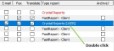
Click on “Crystal Reports [USER]” in the field Type report on the next screen. Select “”FastReport - Client” and close this screen.
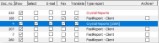
Restart WinTree Nursery Manager to activate the new report format.
To test the new document we need to print it. This will be done in the regular way. Go to File Print, look up the type of report in the left column and select the document you’ve just set to FastReport - Client.
 |
Print out with a selection so the document consists of multiple pages in order to make an accurate comparison between the two types of documents. |
Set the documents back to the Crystal Reports [USER] using the steps as stated above.
Restart WinTree Nursery Manager again to activate the new settings. Print out the same document again, using the same selection and settings as you did with the FastReport - Client format. Now you have the right information for a fair comparison.
|
If you use more than one Crystal Reports [USER] document we advise you to firstly set all the documents to the new standard FastReport - Client format, print these out. Then set all the documents back to Crystal Reports [USER] to print them out again. |
Lay both documents beside each other and compare them. Look for differences such as, missing fields/information, different sorting of the lines etc.
Differences in the documents - Proceedings
When you’ve established the differences within the documents there are 2 possible follow-ups:
• Accept the differences and switch to the standard, FastReport - Client
• Make a list containing all the differences and wishes per document and send that list to TSD (support@tsd.nl). From this list we shall be able to make an estimate of the necessary time and costs that are needed to change the document.
 |
When there are adjustments made to a report we are changing the standard format of a document, this also includes FastReport documents. This is known as customization and leads to a User-report. User-reports are not part of our standard support and service contract. Updates that are made available will apply to the standard FastReport - Client documents, but will not automatically apply to the User-reports. It is possible for us to adjust the User-reports with the updates, based on a predetermined cost analysis or based on cost analysis afterwards, if you so desire. |
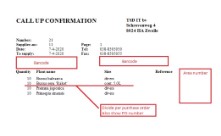
Below we will explain by using a Call-up confirmation (nr.45) how to compare the documents and how to potentially communicate this with us.
Crystal Reports [USERS] – Call-up confirmation:
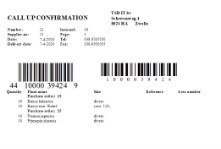
FastReport - Client (standard) – Call-up confirmation
With desired adjustments draw in
Why we won’t be using Crystal reports as of 2021?
From the very beginning, the early nineties from the previous century, TSD has been using the report generator Crystal Reports. To be able to use these Crystal Reports documents in WinTree we need certain functions, known as API (Application Programming Interface), to get the data from WinTree onto the document. The API was being renewed by the creators of Crystal Reports on a regular bases. Which meant that TSD had to renew the way WinTree operates with these functions in newer versions. This was all manageable until the creators of Crystal Reports decided to adjust their API completely in 2008. Unlike previous API-changes, this change resulted in adjustments to reports. This even went as far as needing to completely rebuild the reports. There was no migration tool available and unfortunately the support department of Crystal Reports seemed not willing to collectively find a solution.
When this all occurred in 2008, TSD took the opportunity to see if there was a better alternative for the Crystal Reports. The experiences we had with Crystal Reports were starting to worry us and the stability leaves a great deal to be desired. There were problems for example with the communication between WinTree and the Printer trays. Which resulted in TSD having to release a software patch every time to resolve smaller issues with printing.
After a lot of research TSD decided for the report generator FastReports which, besides the improved stability, also provided more options that were not available with Crystal Reports.
Since 2010 TSD has been spending countless of hours in converting the reports in WinTree from Crystal Reports to FastReports. It started with the most used reports, such as external documents; Quotations, order confirmation and invoices). Other reports soon followed and as of the summer of 2020 all the standard reports will be converted to FastReports. Since we are finalizing the conversion to FastReports we will stop using the Crystal Reports within WinTree.
The main reason to stop using the Crystal Reports in WinTree as of the summer of 2021 is the major uncertainty if, and mostly how long, the current version of Crystal Reports, which is used in WinTree, will still be supported by Windows.
The chances of the new Windows 10 update not supporting the older API from Crystal Reports are rapidly increasing, which results in no longer being able to use these reports. This will affect all the WinTree users at the same time. TSD has experienced such an event recently and with the necessary creativity we were able to solve this incident. That said, this risk is too high to take for your business, but also for TSD as a supplier. The consequences when these problems will occur in the middle of the season are incalculable.
We urge you to start with the inventory of your Crystal Reports [USERS] as soon as possible in order for you to have access to the new reports in a timely matter and to prevent any disruption on your business processes.