



This basic info is available if the Location Management module (module number 66) has been activated.
Stock can be maintained in WinTree per location so that you know exactly where articles are located and how many. A location can be a site, but also a section or a bed. Efficiently organised lifting sequences and walking routes can reduce times drastically. If necessary, plants or trees can be easily transferred from one location to another, retaining the batch information and any allocations on sales order lines.
Because the Locations Management module is always used in combination with the Batch administration (module number 61), different batches of the same article (the same Plant name-Size combination) can be administrated separately, for example because the quality is different or one batch is not yet able to be delivered while the other one is. It is possible to link a quality and free text to each batch. Batches can also have different entry and ready dates??. This is a handy tool because it enables you to record non-deliverable batches without placing them on the stock list for customers. It is also possible to merge batches again.
The Location Management module allows you to:
• Define the basic table with locations
• Define allocation priority per location
• Book stock at the locations
• Define a default return location
• Transfer batches to another location
• View stock per location
• Allocate on batches on the location name
• Print stock lists per location
• Print lifting lists per location
You can manage the table containing the locations to be used via the menu File --> Basic info --> Stock. The opened window displays a list area with all the defined locations. Using [Add], you can add new locations. Locations can only be deleted if there are no more articles at the location.
 Properties
The Locations window has one parameter:
| 1420 | Show supplier locations for sales orders and call-ups (is only used in the Location Management-II module) |
0 = Show all locations 1 = Show only those locations to which the supplier number is linked. |
This parameter can also be modified via the Properties window of the Locations window.
The detail section of the window consists of the following tab pages:
Tab page General
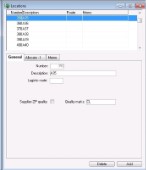


You can enter the following data on this tab page:
| Number | Enter a sequence number for the location here. Use steps of 10 between the numbers so that you can insert new locations at a later stage. The sequence number determines the sorting order on windows and lists. |
| Decription | Enter the description of the location here. |
| Logistic route | Once you have defined the sequence number of the location, you can no longer modify this number. If the logistic route (based on the defined sequence numbers) has to be modified, then a random number can be entered in this field. This logistic route number will be the first in line for the sorting. |
| Supplies ZP quality | If a nursery consists of more than one location, it can happen that certain locations lie in a ZP area while other locations lie outside it. Batches that have to be assigned a ZP code according to the genus but which lie in locations outside the ZP area are not allowed to be assigned a ZP code. Place a tick in this checkbox to indicate that plants delivered from this location must be assigned a ZP code. |
| Quality marks |
Per location, it is possible to define whether articles are grown on the location in compliance with a quality mark. All batches booked on a location with a quality mark also receive the quality marks of the location. |
Depending on the module configuration you are working with, the following fields may also be available:
| Consignment | Tick this checkbox if there are plants at this location that are sold on consignment. |
C&C Center(module no. 107) Cash & Carry (module no. 17) |
| Cash & Carry | Tick this checkbox if the location is part of a Cash & Carry. |
C&C Center (module no. 107) Cash & Carry (module no. 17) |
| Include in Lifting plan | Tick this checkbox if the location must be included in a lifting plan. | Lifting planning (module no. 133) |
Tab page Allocation Priority
The allocating (linking stock to booked sales orders) can be done manually. But it is also possible to allow WinTree to do this fully automatically. Per location, you can define how WinTree can allocate op plants, booked on the location.
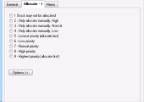
There are nine different options available.
Option 1 Option 2-4
Option 5
Option 6-9 Option 9
| Option 1 | NO stock batches on the location will be shown in the allocation window. Only use this option if the stock batches on the location must absolutely not be allocated. |
| Option 2-4 | This allocation priority will display the stock batches that are on the location in the allocation window but they will not be automatically allocated. |
| Option 5 | Stock batches will be shown normally and can be manually allocated. WinTree will allocate stock batches on the location last if other stock batches are no longer available. |
| Option 6-9 | Stock batches will be displayed and will also be automatically allocated by WinTree. |
| Option 9 | Stock batches on the location will be allocated automatically. If a specific article is available in more than one batch at different locations, the batch on a location defined with option 9 will be allocated first, after which the batches on a location defined with option 8 will be allocated, and so on until batches on a location with option 6. Option 7 is the default for each location. |

After the allocation priority has been defined, batches booked on the location will be given the allocation priority of this location. Note that this will only happen if batch phases are NOT used. The allocation priority of batch phases have priority over the allocation priority of the location.
Using [Options], it is possible to assign the defined allocation priority of the location to batches that have already been booked. Define the allocation priority you want for the selected location and click on [Options].
Choose one of the following options:
| put allocation priority from current stock on selected option | This will result in all existing articles on the location having the allocation priority of the location. |
| Allocation priorities based on stock batch | The allocation priority of the existing articles on the location will be determined based on the settings of the batch phase of the articles. |
Tab page Memo
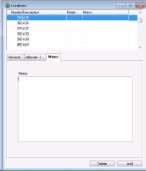
Enter a text with information about the location on this tab page. This text will be displayed in:
- The Locations search window
- Various stock lists
Tab page Load Address
This tab page is only available if you have activated the Transports module (module number 127) or Contract growing?? (module number 92).
Load address
If the Transports module (module number 127) has been activated, this tab page will be available. Plants that are picked up at the supplier address must be delivered to the goods inward location specified. The goods inward locations used must therefore be assigned a load address.
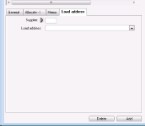
Enter the supplier number that is linked to the own contact data (make sure that this contact has been defined as a supplier). The name of the selected supplier will be displayed. Behind the name there will be a square box. Click on this if you wish to delete the selected supplier.
In the 'Load address' input field, you can select a new load address via a drop-down list.
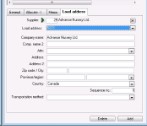
In the window, you must enter the correct address in full. At the same time, you must link a transport method to the load address. Use the drop-down list situated behind the ‘Transport method’ input field to do this.
The list of transport methods must be entered via File --> Basic info --> Others.
Contract growers
If the Contract Growers module (module number 92) has been activated, a Contract grower checkbox will be available on the General tab page. If this checkbox has been ticked for a specific location, the title of the tab page will change from ‘Load address’ to 'Contract growers'. You must enter the address info of the contract grower on this tab page, in the same way as selecting and entering the supplier data for the load address. If the Transports module is also being used, a transport method can be selected in the address. In that case, it is also possible to collect plants from the contract grower via a transport.