



A contact is not yet a supplier!
Contacts can only be made suppliers when the module Purchase (module number 65) is activated.
First select a contact that has to become a supplier. If the contact is not entered then that has to be done first. When the contact is no supplier, only the tab page "Supplier information -I" is available. Open this tab page and click on [Contact becomes supplier]. Directly after this, the tab page "Supplier information -II" will become visible.
 Tab page "Supplier information - I"
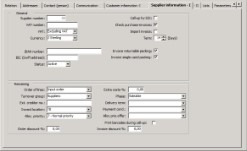


The suppliers information is divided into two frames:
Frame 'General'
In this frame the following information can be entered:
| Supplier number | This number is automatically assigned by WinTree. This number can be altered, but it must be unique. Duplicated supplier numbers are not allowed. |
| VAT number |
Insert the correct VAT number of the client here. VAT numbers for suppliers must be correct. The entered VAT number will not be checked if this is correct or not. The VAT number will, if used, be printed on the purchase invoice. |
| VAT | Use the dropdown list for determining the correct VAT input for the supplier:
|
| Currency | Default is that the own currency (program settings) is shown. |
| IBAN number | Insert the correct IBAN number for the supplier. This information is only used in combination with WinTree Financial Administration. |
| BIC (Swift address) | Insert the correct Swift address here. This information is only used in combination with WinTree Financial Administration. |
| Status |
The default is that every supplier is Active. Use the dropdown list to set the status to Not-active in case the supplier is no longer a supplier but the supplier cannot be deleted. The supplier cannot be deleted if there is still information of the supplier available (for example purchase lines or history in WinTree Financial Administration). |
| Call-up by EDI |
Put a check here if call-ups do not need to be sent per e-mail or fax but as an EDI-message. This checkbox is only available when the module EDI-II (module number 97) is activated. |
| Check purchase-invoices |
Put a check in this checkbox if receipt lines of the suppliers have to be shown when checking purchase-invoices. This checkbox is only available when the module Check purchase-invoices (module number 102) is activated. |
| Import invoice |
Put a check in this checkbox if during checking of the purchase-invoices also Intrastat information has to be entered onto the purchase-invoice. This checkbox is only available in case the module Check Purchase-invoices (module number 102) in combination with module Foreign Trade (module number 84) is activated. |
| Term | The term of payment of the purchase-invoices can be entered here. The default is that the amount of days is taken over from the program settings. Per supplier the amount of days can be altered. |
Frame 'Remaining'
In this frame the following information can be entered:
| Order of lines | Make a choice here regarding the sorting of the lines in purchase orders, call-ups and invoices booked at the supplier. The default setting is plant sequence number, size sequence number. |
| Turnover group | Select with help of the dropdown list one of the supplier groups, entered in the basic information. Select the option 'None' in case the supplier does not belong to one the groups (anymore). |
| Inward location |
Select with help of the dropdown list one of the locations, entered in the basic information. The default inward location from the program settings will be selected as preferred location. This field is only available if the module Inward goods (module number 62) is activated. All inward goods will (temporarily) be in this location. |
| Allocation priority |
Select from the dropdown list one of the allocation priorities. Every purchase line of the supplier gets this allocation priority. the priority is used in case WinTree is set up to automatically allocate sales lines. |
| Extra costs-% | Insert a percentage here to increase the cost price with this percentage. For example for freight. The cost price of the purchase line will be increased with this percentage and saved as PCP (Purchase Cost Price). The PCP can be used as the starting amount for determining the sales price. |
| Phase | Select with help of the dropdown list one of the batch phases, entered in the basic information. Every purchase line gets this phase. Per purchase order line the phase can be altered. |
| Delivery term | Select with help of the dropdown list one of the delivery terms, entered in the basic information. Every purchase order will get this term. Per purchase order this term can be altered. |
| Payment conditions | Select with help of the dropdown list one of the payment conditions, entered in the basic information. Every purchase line will get this condition. Per purchase order this condition can be altered. |
| Alloc.Prio.offer | Select with help of the dropdown list one of the allocation priorities. Every supplier offer that is booked, gets the default selected allocation priority. Per supplier offer-line the priority can be altered. This option is only used in case the module Trade functionality - II (module number 86) is available. |
| Print barcodes during call-up | This option is no longer used because of the changed functionality for scanning inward goods. |
Tab page "Supplier information - II"
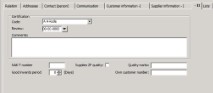
In the frame 'Certification' the evaluation of a supplier is visible. The shown information can be altered. In the field 'Comments' text can be entered for the review.
On the tab page the following information can be entered:
| NAK-T number | Insert the registration number of the supplier at the MAFF here. This number is printed on purchase orders and call-ups. |
| Good inwards period | Insert the average goods inwards period (in days) here. When booking sales orders via the order entry window, this period can be shown per purchase line. Next to this, the period can be made visible when allocating. Both options requires special action of TSD. |
| Supplies ZP-quality | Put a check here in case the supplier supplies plants with a ZP-plant passport (in case this is applicable according to the genus). |
| Quality marks | Insert, separated by commas, the quality marks here on which the supplier supplies plants. |