



WinTree offers a large number of pre-defined paper types. In addition to the default paper type A4 (portrait and landscape), there is a wide selection of paper types available for printing labels. By default, all documents that are available in WinTree are linked to the right paper types. If you need to use a non-standard paper type, for example when using pre-printed letter paper with non-standard margins, or labels, you can define a new paper type.
The paper types are available via the menu File -> Paper types. The drop-down list will display all paper types available. Number 1, A4 is the standard paper type that is linked to the majority of documents. Paper types 2 through 4 are commonly used label types for matrix printers (because these printers cause problems when used in combination with Windows, TSD advises against using these printers) and Novexx. The Novexx labels are used when labels are printed on an Avery Denison AP 5.4 printer.
Paper types 15 through 24 are paper types that have yet to be defined. These 'Free' paper types are used to create new paper types.
Paper type 25 is the landscape A4 document. Paper types 101 through 138 are paper types that are used for printing labels on a laser printer.
Paper type for company logo
For printing, faxing and emailing company logos and footers, WinTree uses the wtheader.BMP and wtfooter.BMP files. After WinTree has been installed, these two files are always located in the folder: ..\programdata\TSD\wintreedata\headers (in a network, this path will be W:\headers). The content of these files is empty. If the content of these files is modified (see creating wtheaders), all you need to do in WinTree is to specify whether a company logo and/or footer has to be used in documents (see system settings).
You can, however, choose to use other company logos and footers for faxing and/or emailing than for normal printing. You can define this using the paper types. Because non-default margins are often used when using company logos and footers, it is advised to create a separate paper type in which the company logos and footers to be used are defined. Read the description in the system settings to find out how to link a different paper type to a document.


Select one of the 'free' documents (numbers 15 through 24).
Change the description of the paper type to, for example, 'Logo paper'. Nothing has to be changed in the 'Orientation' and 'Label' frames. In the 'Margins' frame, the correct margins must be specified. These can be identical to the WinTree default but you may deviate from it. The default values are Left 300, Right, Top and Bottom 500. If non-standard margins are used, you must modify the values in steps of a minimum of 250, in other words from 500 to 750. No default values can be specified, this will need to be determined via trial and error.

On the 'Report' tab page, it is now possible to specify which files must be used for printing, faxing and emailing. If nothing is selected, the default file will be used. Use the 'Explorer' button to select the correct files. TSD advises saving a modified wtheader.bmp and footer.bmp in the default Header folder.
The 'Repeat logo on following pages' checkbox applies only for the company logo, the header. The footer is only used on the last page of the document. Close the window by clicking on the 'X' in the top right-hand corner. Your modifications will now be saved.
With a non-standard paper type, it is also possible to position the address block in a different location. If the X and Y coordinates are 0, the default settings (as defined in the system settings) are used. This also applies to the position of the title of the document.
Paper type for labels
A wide selection of paper types is available for printing labels. If a label is used that only slightly deviates from a default paper type, you can modify this paper type. It is also possible to modify one of the 'free' paper types.
Select one of the 'free' documents and modify the description.
The height and width of the label are specified in the 'Label' frame. The measurements in these two fields is 2500 = 25 mm. If a paper type is created for, for example, stickers on A4 sheets, take into account the space between the labels when defining the height and the width. Specify the number of labels that are positioned next to each other in 'Next to each other', and the number of labels above each other in 'Above each other'. A sticker sheet with 2 columns and a total of 16 labels is input as 2 next to each other and 8 above each other.
Tick the 'Use label buffer' checkbox if the printed labels are first placed in a buffer before they are actually printed. Using the label buffer prevents the unnecessary loss of empty labels.
In the 'Margins' frame, specify the margins of, for example, sticker sheets. The measurements here are in mm. Nothing is modified in the 'Paper' frame.
Once a paper type has been created, you must link the paper type to the label via the layout wizard of the label (see system settings). If a paper type that is already linked to a label is modified, when this label is printed, the modified paper type will be used directly.
Paper type for graphic printing
Certain label printers (Avery, TEC, Toshiba) can also be graphic-driven. This makes it possible to print company logos on the labels or to use multiple fonts. To print labels graphically, you must first create a non-standard paper type.
Select one of the 'free' documents and modify the description.
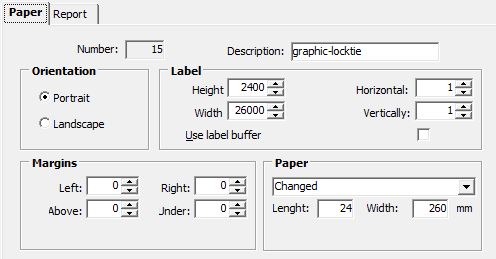
The height and width of the label are specified in the 'Label' frame. Make sure you enter 'Next to each other' and 'Above each other'. If desired, tick the checkbox for using the label buffer. Nothing is entered in the 'Margins' frame.
In the 'Paper' frame, the default paper type A4 must be replaced by 'Changed' (via the drop-down list). After selecting this, two fields will become available under this paper type. In the 'Length' field, the length of the label in mm is entered. In the 'Width' field, the total width of the labels, as they are rolled up next to each other, is entered. If, for example, a label is 2.5 cm wide, and there are 4 labels next to each other on a roll, then the width is 100 mm.
The image below shows an example of what a paper type for graphic printing of lockties (25 cm long, 2.5 cm wide, 4 next to each other) may look like. The measurements displayed may deviate per printer type when using the same label type.