



Each stock batch can be linked to a batch phase. The batch phase can be used to make clear which phase of development the batches are in. The allocation priority can be defined for each batch phase. So that for example, it can be defined that the batch may not be allocated at all. This makes it every simple for the correct batch to be selected by WinTree (automatic allocation) of the user during the allocation process.
To manage the batch phases, open the menu File -> Basic info -> Stock -> Batch phase. After opening the menu, all available batches will be displayed. Click on [Add] to enter a new phase.
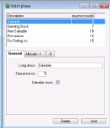


 Tab page 'General'
A batch phase consists of the following fields:
| Description |
Enter the description of the phase here. Use a neutral text for the description of a batch phase, and not a text that is season-dependent. Season-dependent texts can only be used for one season, which makes it necessary to modify the basic info each season, which is not practical. |
| Sequence no. | Enter a sequence number here. This sequence number is used for sorting the batches. The batch phase with the lowest sequence number will be linked to each new stock batch as the default phase. |
| Saleable stock | The "Saleable stock" checkbox can be used to make an extra selection during the creation of a stocklist or catalogue. This option is however only available if the WinTree module Trade Functionality I (module number 75) has been activated. With just WinTree Basic and the Batch administration module (module number 61) this checkbox has no function. |
Tab page 'Allocate-I'
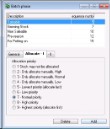
You can define the allocation priority of the phase using this tab page. Option 7 is the default value for each new phase.
| Option 1 | All stock batches with this phase will NOT be displayed in the allocation window. Use this option only if the stock batches must absolutely not be allocated with the phase. |
| Option 2-4 | With this allocation priority, the stock batches with this phase will be displayed but not automatically allocated. |
| Option 5 | Stock batches will be displayed normally and can be manually allocated. WinTree will allocate these stock batches with this phase last if no other stock batches are available any more. |
| Option 6-9 | Stock batches will be displayed and also automatically allocated by WinTree. |
| Option 9 | Stock batches with this phase will automatically be allocated first. If more batches of an article are available at different locations, the batch with this phase defined with option 9 will be allocated first, after which the batches with phases defined with option 8 will be allocated, and then those defined with option 7 and so on. |
Tab page 'Allocate-II'
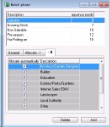
All customer groups with the checkbox "Allocate automatically" are displayed on this tab page. When there is a tick placed in the checkbox (which is the default situation), automatic allocation is allowed based on the allocation priority of the stock batch and the customer group. When the checkbox is not ticked, automatic allocation is not allowed. Manual allocation is however always possible, in which case these settings will be ignored.
When the allocation priority has been manually defined, nothing on the tab page "- II" can be modified, the background colour will then be greyed out.