



When using the module composition Basic Plus (module number 11 supplemented with Location management (66) and Batch administration (61)), you can determine base prices per article in the stock items. Next to this, prices for private sales (price including VAT) can be entered here. The alterations of these prices has to be done per article and is, depending on the amount of articles, time-consuming.
With help of the module Price codes (module number 80) it is possible to determine prices in the stock items per price code. Also the management of these differing prices can be a time-consuming activity. Each article must be selected on screen and the differing prices has to be entered manually. Next to this prices can also be calculated with the help of the module Price tables (module number 64).
For the management of these prices a separate module Export/Import prices (module number 103) is available. With this module it is possible to alter the prices outside of WinTree. Then these altered prices can be imported again. This module can be used with the module composition Basic Plus and when using Price codes or Price tables.
The altering of the prices with help of this module consists of three steps:
- The export of article information.
- The altering of the article information (prices) in Microsoft Excel.
- The import of the altered article information.
 Export of article information
The export of article information is started via the menu File -> Export -> Article information. The export is done with the help of a wizard. Click in the first window on [Next] to continue. Click on [Cancel] to close the wizard.
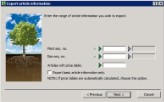


This next window in the wizard shows selection criteria (equal using module Price tables or Price codes). The following selection criteria can be entered (*):
| Plant seq. no. | Insert a selection on plant sequence number here. With help of the green arrow a search window Plant names is shown where you can search on matchcode. Add a 'from - Up to' range if a specific group of plants has to be exported. |
| Size seq. no. | Insert a selection on size sequence number here. With help of the green arrow a search window Plant qualities is shown where you can search on size code. Add a 'From - Up to' range if a sepcific group of qualities has to be exported. |
| Articles with price table | This selection criterion can only be used if the module Price tables is activated. With this, articles that have a specific price table can be exported. |
| Checkbox 'Export...' |
Do not use this checkbox if working with the module Price codes. When using the module Price tables, the prices are most of the time calculated based on percentages in the price tables lines. Put a check in the checkbox if the prices of the price tables have to be calculated this way. In the export then only the Base price, Fixed calculation price and Retail price of the articles will be exported. |
(*) The more selection criteria are entered, the smaller the export result. No selection will export all articles.
Click on [Next>].
In the next window of the wizard the file location and the name of the exportfile can be entered. Is an export made recently, then the file location and the name of that earlier export will be shown. Choose a file location where with Microsoft Excel the file can be opened.
 |
The file location and the file name can be chosen freely. The extension of the file must always be TXT. |
Click on [Complete] to start the export. In a pop-up window an overview is shown (SQL selection) of the chosen selection criteria. Close this window with [OK]. Then the export will take place. depending on the amount of articles to export, this can take some time. If the export is done, a pop-up window will be opened in which the amount of exported articles are shown.
Example of the export file in which the checkbox was checked
ACMKUPFE Acaena microphylla 'Kupferteppich' 9 P9 1,550 0,990 EUR 10 1 1.880
Example of the export file in which the checkbox was not checked. The article is linked to 5 price codes.
ACMKUPFE Acaena microphylla 'Kupferteppich' 9 P9 1,550 0,990 EUR 10 1 1,880 1,000 2,000 3,000 4,000 5,000
 |
TSD advises to enter the base price, FCP and Retail price for one article, and if used, also the differing price codes. Make sure that there are clear alternative prices. Export this article and in the export file it is then clear which prices will come in which fields. The order is not completely similar to the order used when the article was entered in WinTree. |
Altering prices
After the article information has been exported, the prices can be altered in the export file.
|
Only alter prices in the export file. Leave all other information unchanged. Do not change the order of the columns. Do not add columns. |
The export file is saved as a TXT file. This file format can be opened in notepad. The altering of prices in this program is not easy. Next to this, the risk exists that the layout of the document is accidently altered, making it impossible to import the information back. So, alter the information because of this in Microsoft Excel. The description below for altering the file is based on the use of Microsoft Excel version 2007. Other versions of Excel can alternate from this. Read the Office manual for your version on how to import data from a TXT-file into Excel.
Open an empty Excel file. Open the menu Data. Choose in the menu 'Import external data' the option 'From text'. Select in the opened window the correct file location and the export file. Click on [Import]. Excel makes use of a wizard for importing information.
Choose in the first window the option 'Separate'. Click on [Next>]. Choose in the second window as separation mark 'Tab', NOT 'Comma'. Click on [Next>]. Leave the type of information per column unchanged. Click on [Complete]. Click in the opened pop up window on [OK]. The information from the export file will now be shown in Excel.
|
REMEMBER: Only alter the prices in the export file. Leave all other information unchanged. Do not change the order of the columns. Do not add columns. In the Excel file there are empty columns between the shown information. Keep these columns! |
In column E is the FCP, column F shows the base price while in column K the retail price of the article is shown. In column O and next are the prices of the price codes. The amount of shown prices is dependent on the amount of price codes that are used in WinTree.
The prices can now with all available tools of Excel be altered.
 Saving the Excel file as a TXT-file
After the prices in Excel are altered, the Excel-file needs to be saved as a TXT-file. Only this file format can be used by WinTree to import the altered prices.
Choose in the Start-menu of Excel for the option 'Save as' -> Other layouts'. Select the location where the file has to be saved. in case WinTree is used in a network, this location also needs to be accessible from WinTree. Give the file a clear nme. Select from the dropdown list behind the text 'Save as' the file format Text (Tab is separation mark) (*.txt). Click on [Save].
Click in the shown pop up window on [OK], then click in the next pop up window on [Yes]. The file is saved. Close Excel. There will be shown a question about saving. Click here on [No], the file is already saved in the correct way. The file can now be imported into WinTree.
Import of altered article information
Other ways of altering prices
WinTree offers, without extra modules, two other possibilities to easily and collective alter the prices.
- Recalculating prices
- Price calculation stock
For both options there are manuals available.