



WinTree has an extensive list including each genus used in the nursery. The MAFF determines which passport codes and subcodes must used with the genus. During the installation process of WinTree, a default genus table is present whereby each genus is allocated the correct passport code as was known to TSD as at March 2010. TSD does not maintain the genus table. If a genus is added to the passport–required crops, this must be modified by the WinTree user himself.
In addition to the correct passport data, the genus table can also be used to record deviant VAT codes and data on family with descriptions of the genus. These latter options are only useful if a link exists to a website and/or extensive catalogue in which the data can be displayed. This is not a standard function in WinTree.
The genus table is opened via the menu File -> Basic info -> Stock -> Genus. The default genus list is displayed in the text area.
 Tab page "Detail"
On this page, the details of the genus that has been selected in the text area are displayed.
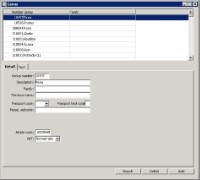


| Genus number |
Number of the genus as assigned by the IMAG. This number is an internationally used number for this genus. |
| Description | Description of the genus. |
| Family | Family name under which the genus falls. This field is only used in an extremely extensive module structure. |
| Old name |
Old name of the genus. This field must also only be used in an extremely extensive module structure. |
| Passport code |
Using the dropdown list, you can select the desired passport code. There are 4 choices available: • GP = No Passport, this code is only used to no longer assign a passport code to a genus to which a passport code had previously been assigned. • OP = Original Passport, this code is not used in WinTree. • ZP = Zone Protecta, this code applies to a limited number of genus that fall under the regulations of Zone Protecta. |
| Passport subcode |
In the input field 'Passport subcode', an extra suffix must be entered for certain crops. This subcode can be entered as text. The most commonly used subcodes in the nursery sector are:
|
| Passport text code | Instead of the full plant passport (inclusive registration code, sequence number and any subcode) a choice can be made for the use of text codes. Enter the text code to be used here. |
| Article code | Is not used outside the Netherlands. |
| BTW | By default, each genus is linked to the VAT code Low. Per genus, it is possible to deviate from this. The entered VAT code will be used for further bookings in WinTree. If the customer is set to VAT-required and the genus of an article has been defined as ‘None’ then no VAT will be charged when that article is sold. |
Read also the separate PDF-document Plant-passports
Tab page "Texts"
On this tab page, it is possible to enter a description, per language, (entered in the basic info Languages) of the genus. Additionally, and also per language, information about the genus can be entered. Think, for example, of a general description of the plants that fall under the genus. All data on this tab page will only be used for an extremely extensive module structure of WinTree.
Add/Delete
Using [Add] you can add a new genus to WinTree. With a new genus, make sure you enter the correct, recognised number.
A genus can be deleted using the [Delete] button. You can only delete a genus that is not used.