



 Registrations
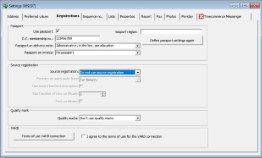


Passport
| Use paspoort: |
With this checkbox you can indicate if you want to make use of the Plant passport as set in the new EU legislation as of 14th of December 2019. |
| D.C. membership no. | Here you can fill in your membership number as is provided by your country’s inspection service and authorities. |
| Passport on delivery note |
By using the dropdown menu you can select how the Plant passport information will be printed on the delivery note. “No passport”, “Administrative, in the line”, “Administrative, in the line, per allocation”, “Official passport, in the line”, “Official passport, in the line, per allocation” or “Official passport printed in the footer (PZ not possible)”. |
| Passport on invoice |
Same as the description for the delivery note, this one applies only for the invoices. |
| Passport region | If a region code must be placed in the passport, it can be entered here. |
| Define passport settings again | By using this button all the changes made in the PZ-register regarding the stock-, sales- and purchase lines will be carried out throughout the WinTree database. |
For more information on plantpaspoort also read: Plantpassports
Source registration
| Source registration | WinTree has the possibility for Source registration. To be able to use this registration you need to set the “Source registration” field on the value ‘Use source registration’. Use the dropdown menu to set the value. |
| Forestry on sales order lines: | If the value of this field is set on “For forestry”, it will ensure that every time you create an order line a check will be placed automatically. Which will generate the supplier certificates in an easier way. If the value of this field is set on “Not for forestry”, it will not place a check automatically when creating an order line. This means that you have to fill in manually if the order line has to involve forestry material. This also applies for delivery lines. |
| Use seed treatment description |
If the certificate needs to include data for the purpose of the seed treatment, check this box. |
| Start number of new certificate |
Here you can fill in the last used number from your former administration. WinTree will use this number for continuing with the consecutive numbering. |
When you want to print the certificate simultaneous when confirming the delivery, place a check mark in the check box “Print certificate”. It is necessary that the confirmed order line has a check in the Foresty check box.
TSD will advise you to use the value “For forestry” on the Forestry on sales order lines setting. This setting in combination with the checkbox “Print certificate” will ensure that there will always be a supplier certificate present upon a delivery of forestry material.
For more information on Forestry also read: Forestry.
Quality mark
WinTree also provides the possibility to register your Quality marks. There is a dropdown menu present in which you can choose if you want to make use of the quality marks. The selected setting will also be available in parameter 1638. For more information about the usage of quality marks please read this manual: Quality mark.
'VARB'
WinTree has a connection with the website from the Dutch organisation VARB. For usage of this connection, you need to have a subscription to the Stichting Beurshal. This only applies for the Dutch customers.